WordPress Glossary: Essential Terms Every Beginner Should Know
I love connecting with talented people like you. I’m so happy to have you here.
If you’re just getting started with WordPress, you’ve probably already come across words like plugin, hosting, domain, widget, theme, or SEO. At first, it can feel like you need to learn an entirely new language just to understand how your website works.
The good news is that most of these concepts are much simpler than they sound.
In this WordPress glossary, you’ll find some of the most common terms explained in simple language, so you can understand your website better and manage it with more confidence.
But, first!
What’s WordPress?
WordPress is a Content Management System (CMS) that allows you to create and manage websites without having to build everything from scratch with code.
You can use WordPress to create blogs, business websites, portfolios, online stores, service websites, educational platforms, and many other types of websites.
Now, let’s talk about all of that things that WordPress is conforming.
Domain
A domain is the address people type into their browser to visit your website. For example: yourbrand.com Think of your domain as your business’s address on the Internet.

Hosting
Web hosting is the space where your website’s files are stored, including images, text, databases, plugins, themes, and other elements.
If your domain is your digital address, hosting is the land where your website is built.
CMS
CMS stands for Content Management System.
It is software that allows you to create, edit, organize, and manage website content through an administrative interface.
WordPress is one of the most widely used CMS platforms.
Dashboard
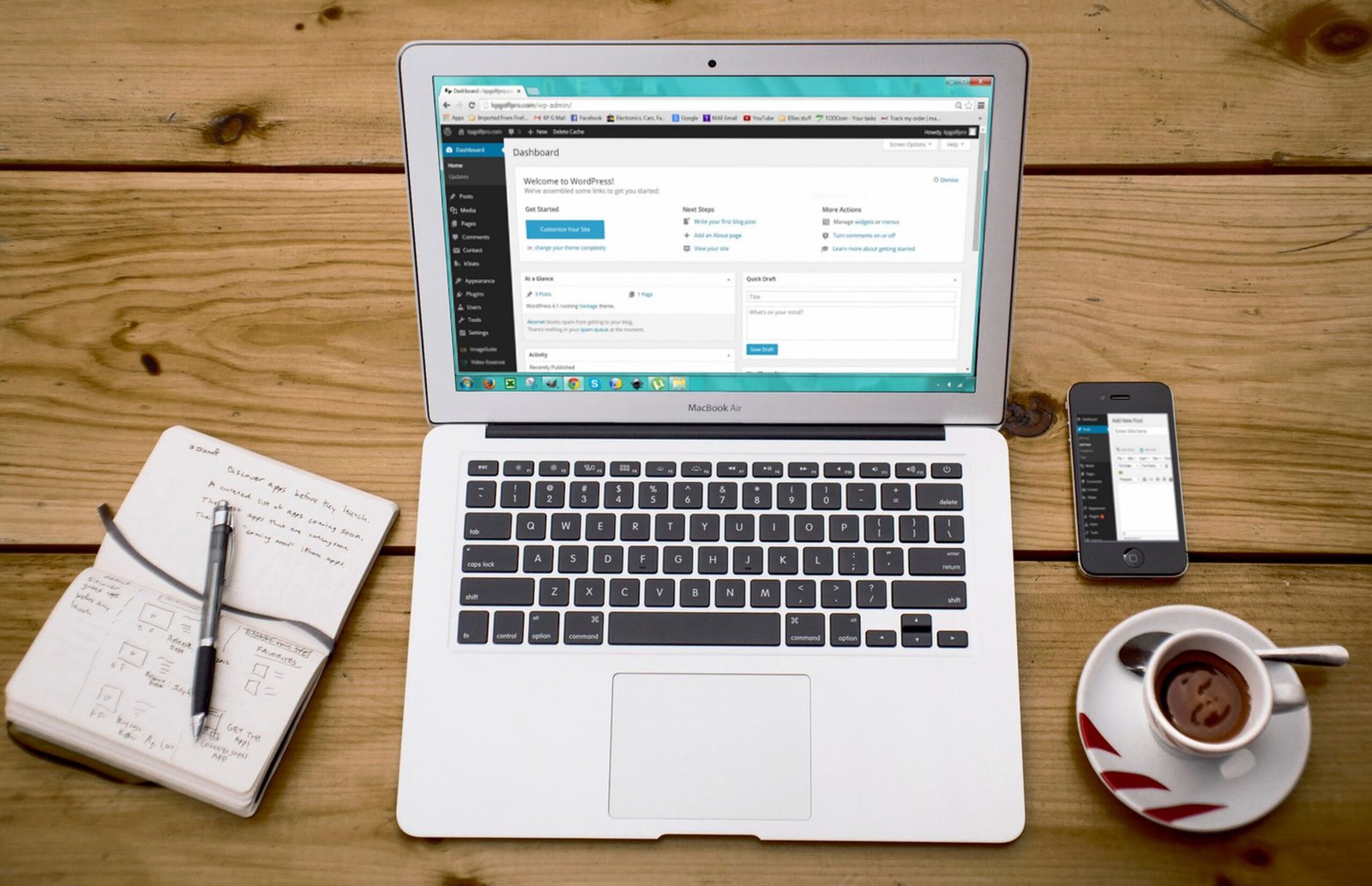
The Dashboard is the main WordPress administration area.
From here, you can manage almost everything on your website: create pages, publish blog posts, install plugins, change your design, manage users, review comments, and adjust settings.
A standard WordPress installation can usually be accessed through an address similar to:
yourdomain.com/wp-admin
Theme
A theme controls much of the appearance and visual structure of your WordPress website.
Depending on the theme, it can control elements such as fonts, colors, headers, footers, buttons, layouts, and other design settings.
Popular WordPress themes include Astra, Kadence, and GeneratePress.

Plugin
A plugin is an extension that adds new functionality to WordPress.
For example, you can install plugins to create contact forms, improve SEO, increase security, create backups, build an online store, or connect external tools.
An easy way to understand plugins is to think of them like apps on your phone: you install them when you need additional features.
Page Builder
A page builder is a tool that makes it easier to visually design pages using elements that you can add, edit, and organize.
Elementor and Divi are well-known examples. They allow you to create sections, columns, buttons, images, headings, and other elements without having to manually write all the code.
Gutenberg
Gutenberg is WordPress’s built-in block editor.
Instead of editing an entire page as one document, Gutenberg allows you to build pages and posts using individual blocks for paragraphs, headings, images, buttons, columns, videos, and more.

Block
A block is an individual piece of content within the WordPress editor.
For example, a heading can be one block, an image another, and a button another.
This makes it easier to organize and modify the content of a page.
Page
A page is typically used for relatively permanent content on your website.
Common examples include:
Home
About
Services
Contact
Frequently Asked Questions
Unlike blog posts, pages are generally not organized chronologically.
Post
A post is a piece of content that usually belongs to your website’s blog. Posts can be used to share articles, news, tutorials, updates, tips, or educational content. They can also be organized using categories and tags.
Category
Categories help organize your blog posts into general topics.
For example, a web design blog could have categories such as:
WordPress
Web Design
SEO
E-commerce
Digital Marketing
Categories make it easier for visitors to discover related content.
Tag
Tags are another way to organize content, but they are usually more specific than categories. For example, a post in the WordPress category might include tags such as Elementor, plugins, or WooCommerce.

Widget
A widget is a small element that displays specific information or functionality in certain areas of your website.
Depending on your WordPress theme and configuration, widgets can display menus, search bars, categories, recent posts, and other types of content.
Menú
A menu is the navigation system visitors use to move between different sections of your website.
For example:
Home | Services | About | Blog | Contact
Clear navigation helps visitors quickly find the information they’re looking for.
Header
The header is the top section of a website. It usually contains elements such as your logo, navigation menu, important buttons, or contact information.
Footer
The footer is the section at the bottom of your website.
It can contain contact information, legal links, social media profiles, secondary navigation, copyright information, privacy policies, and other useful links.
Part of a URL
A slug is the part of a URL that identifies a specific page or post.
For example:
yourbrand.com/services
In this case, services is the slug. It’s usually best to keep slugs short, descriptive, and easy to understand.
Permalink
A permalink is the complete permanent URL assigned to a page, blog post, or other piece of content.
Properly configured permalinks help keep your website’s URLs organized and easy to understand.
Media Library
The Media Library is the section of WordPress where your uploaded media files are stored and managed.
This can include images, documents, videos, and other files. You can also reuse files that you have previously uploaded.
ALT Text
Alternative text, or ALT text, is a written description of an image.
It is especially important for accessibility because it helps screen readers communicate relevant visual content to users. It can also provide useful context about images to search engines.
Good ALT text should clearly describe the image when that information is relevant.
SEO
SEO stands for Search Engine Optimization.
It refers to different techniques used to help search engines such as Google understand and discover your website.
SEO can involve your site’s structure, content quality, keywords, headings, page speed, internal links, user experience, and technical optimization.
Responsive Design
A responsive website automatically adapts its layout to different screen sizes.
This allows your website to display correctly on desktop computers, tablets, and smartphones. Checking the mobile version of your website is now an essential part of the web design process.
Cache
A cache temporarily stores certain files or versions of a webpage to help the website load faster. This is why you may sometimes make a change in WordPress and not see it immediately.
Clearing the cache can help display the updated version.
SSL
SSL is a security technology that helps protect information transmitted between a visitor’s browser and your web server.
A website using HTTPS will have an address similar to: https://yourbrand.com
Having HTTPS properly configured is important for website security and visitor trust.
Backup
A backup is a saved copy of your website. It can include your files, images, plugins, themes, and database.
Regular backups are important because they can help you restore your website if something goes wrong.
Update
WordPress, themes, and plugins regularly receive updates.
These updates can include new features, bug fixes, compatibility improvements, and security patches.
Keeping your website updated is an important part of website maintenance, although creating a backup before major changes is always a good practice.
Database
The database is where WordPress stores much of your website’s information, including settings, users, content, and other data.
You normally don’t need to modify the database directly to manage your website, but it is an essential part of how WordPress works.
User
WordPress allows you to create multiple users who can access and manage your website. Each user can have different permissions depending on their role.
Default WordPress roles include Administrator, Editor, Author, Contributor, and Subscriber.
Administrator
Administrator is the role with the highest level of access in a standard WordPress installation.
An administrator can install plugins, change themes, adjust settings, manage users, and make major changes to the website.
For security reasons, administrator access should only be given to trusted people.